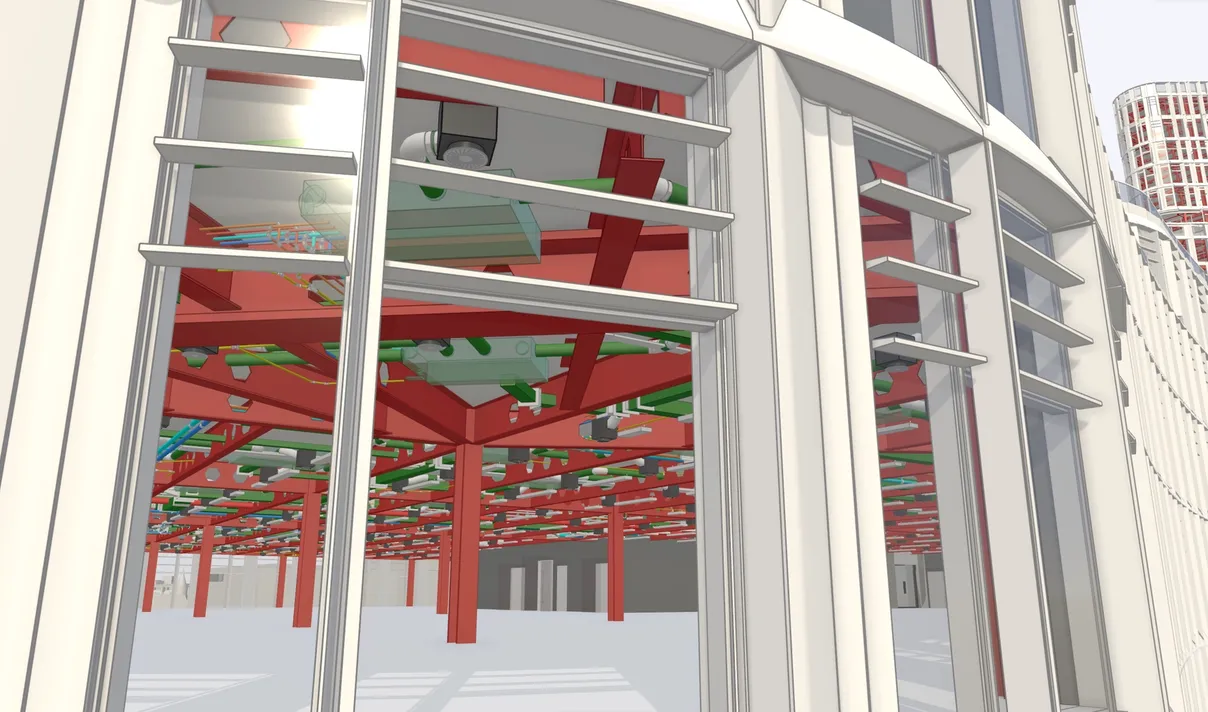

At Qonic, we’re committed to bridging the gap between direct modelling (push/pull) and traditional object modelling (BIM tooling). This month, we’re further streamlining this process by introducing dedicated tools for components.
Centralising every object across all models in your project simplifies management and placement as the design evolves. With consistent geometry and metadata, coupled with tools for rationalising and managing variants, our customers can effortlessly enhance model detail without the hassle of complex management or frustrating limitations.
In Qonic, you can begin a project from scratch, model the massing, utilise our machine learning to convert geometry into classified and structured data, place components around the model, developing its detail, and then deliver reports and fully annotated drawings.
What components let you do
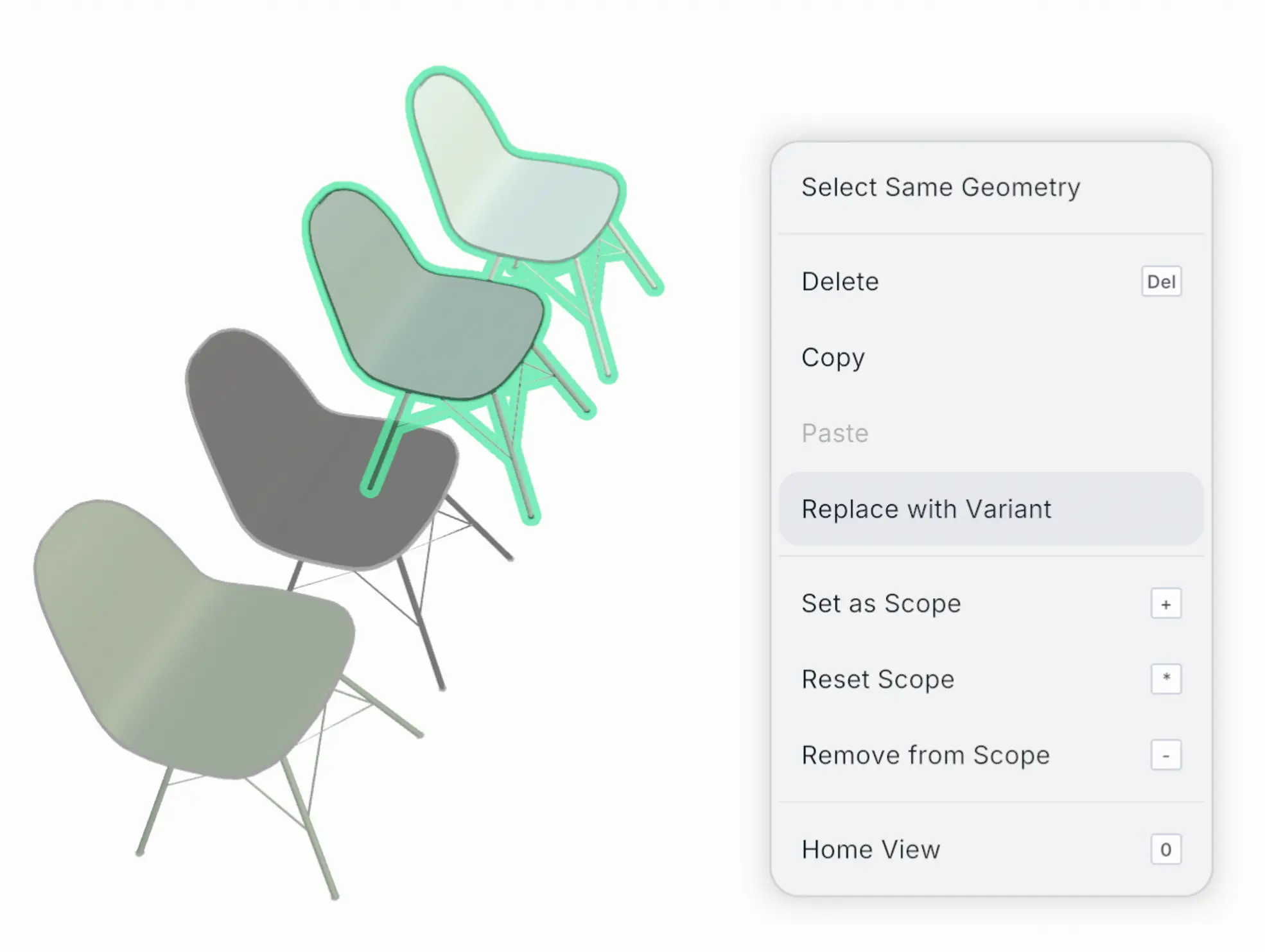
A Component is a reusable definition: a window, a door, a piece of furniture, an MEP terminal.
A Variant is a version of that Component, which could differ slightly, for example in dimension, or hardware/fixings.
An Instance is a placed copy in the model. Each Instance refers to a variant of a component definition.
Want to see Components in action? Watch the deep dive video to explore the workflow, from creating and placing components to managing variants across your projects.
Creating and managing Components
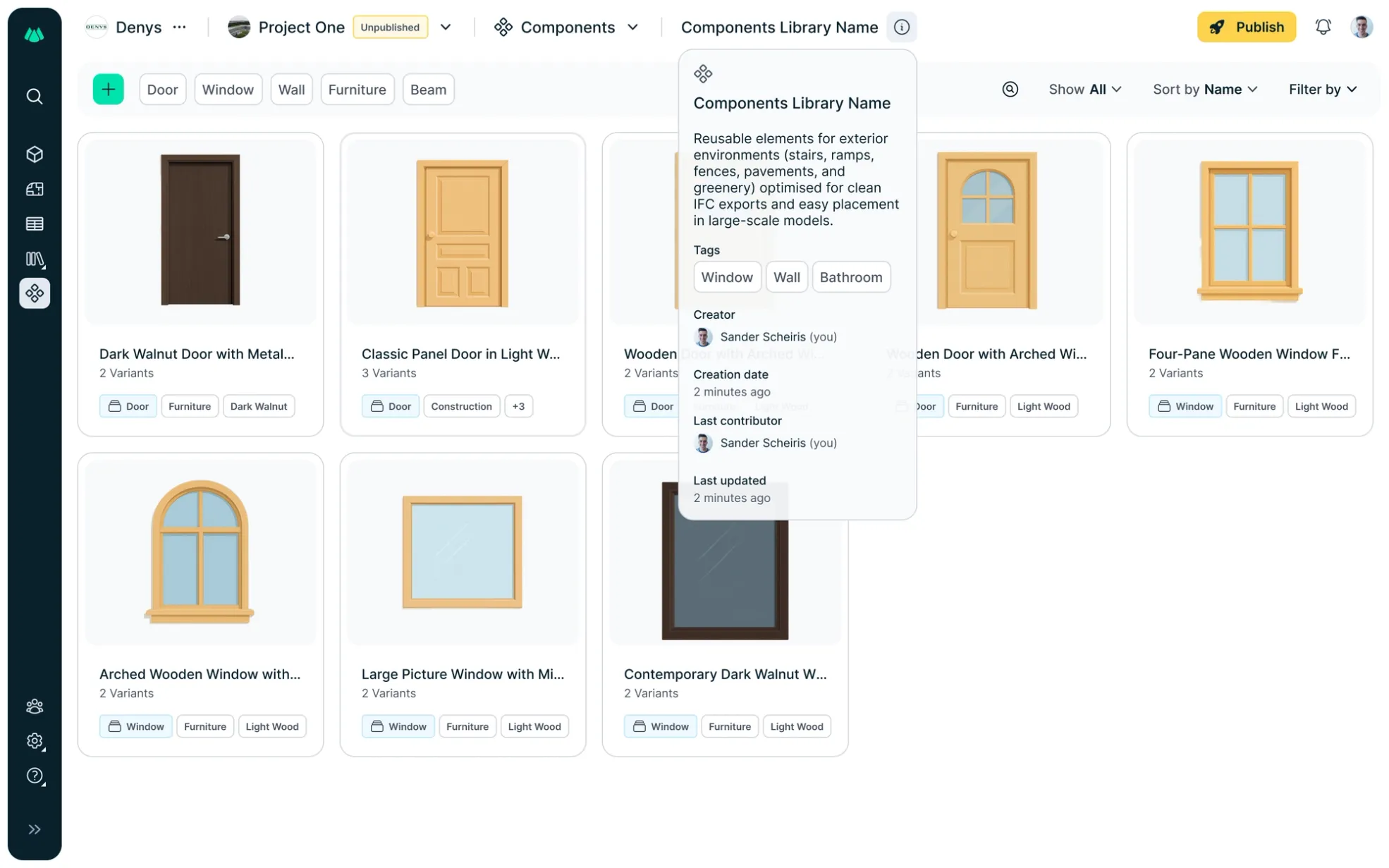
Creating and managing components is straightforward in the Qonic App and your project’s dashboard.
Creating components
- Create components from a geometry selection in the Qonic app. For example, the geometry of a chair you’ve created, a collection of tables and chairs, or even an entire bathroom collection.
- You can also create Components in Qonic from your existing library of Revit families. From the Qonic project dashboard, you can import RFA-files en masse, and they’ll be available in your library.
Using components
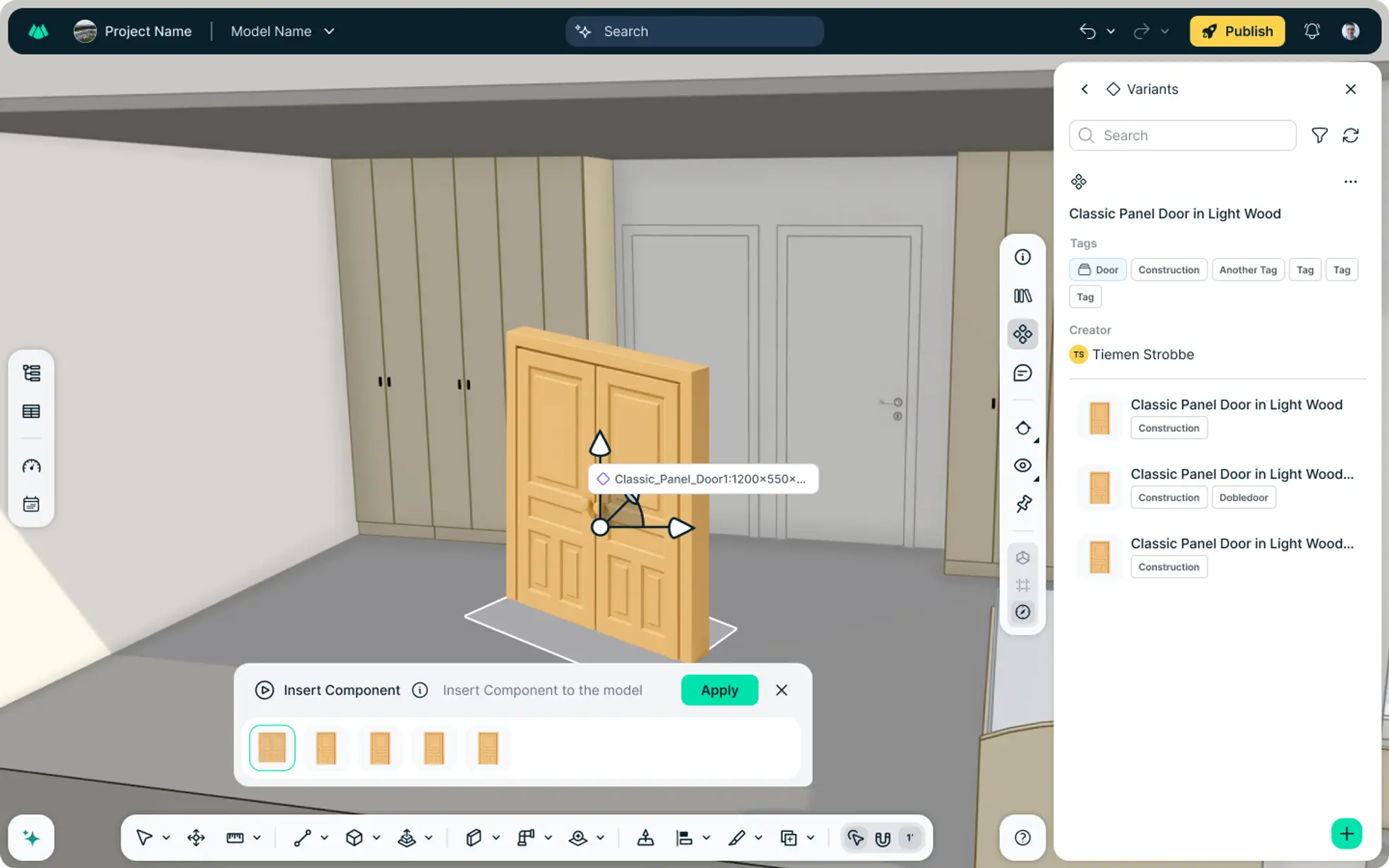
- Drag and drop components into your models.
- Replace any component instance with any of its variants.
- Find geometry that matches a component definition and automatically link it as an instance of the component.
- Identify component instances that deviate from their component definition, and reset them or create a new variant from this.
Managing components
- Share component libraries between projects, such as copying an existing library from another project as a starting point.
- Edit the component’s names, add brief descriptions, and then tag to help sort and filter your libraries.
- Set the default variant of a component.
- Delete a component.
Learn how to create, place, and manage components in the app, or import and organise libraries from your project dashboard.
Getting started
The Qonic Sample Project provides a component library so you can immediately see the workflow in action. From there, creating your own libraries – either from scratch or by copying an existing one – and building models from components is a few easy steps away in the Project Dashboard and Components panel.
What’s next?
This release lays the groundwork for object modelling and management within Qonic, supporting both functionalities from the start. We’re still developing additional features to enhance this further in the coming months. We’re expanding the functionality to include:
- Automatically extract content from imported Revit models, so you can instantly enhance your project with more instances of existing components.
- Enabling the editing of variants during design.
- Improving snapped options during placement.
- Adapting flows between users and an organisation’s library.
- Releasing a dedicated component editor.
The fastest way to see this in action: open the Qonic Sample Project. It ships with a full component library, so you can start dragging, replacing, and managing variants in minutes.